'New sub routine created with name reflective of the work to be done


Sub ChangeSheetName()


'Define variable to hold input from user


Dim NewName As String


'Firstly populate the variable with the user input then process


NewName = InputBox("Enter the new name of the sheet")


'Check if the variable is empty if so exit the sub

'If the value input by user is not empty then set the active sheet to this value

'Put a line of text in the first cell of the sheet

'then add current date to next cell

'then add the value that the sheet name was set to in the next cell

'in each of those processes do an autofit for the column so that log note

'looks like a sentence


If NewName = "" Then

 Exit Sub

Else

 With ActiveSheet

  .Name = NewName

  .Range("A1").Select

  Selection.Value = "This sheet's name was last changed on the :"

  Columns("A:A").EntireColumn.AutoFit

  Range("B1").Select

  Selection.Value = "=now()"

  Columns("B:B").EntireColumn.AutoFit

  .Range("C1").Select

  Selection.Value = "To: " & NewName

  Columns("C:C").EntireColumn.AutoFit

 End With

End If

End Sub
Wednesday, 14 March 2012
Using VBA
In Excel for example you can use VB code to manipulate certain things within the rows/columns and objects or even work with external data sources to import data and display it on the sheet. For example here is a simple bit of code to press a button on the sheet, bring up a dialog box where the user inputs a new sheet name and then a log is written in the spreadsheet of when the name was last changed and to what value. Here I am using 2003 Excel.

Wednesday, 2 June 2010
Using Dialog Result
If you are asking the user to confirm or cancel details, say you have a validation check on a textbox for instance, which is a system check to confirm the correct syntax etc is correct, for instance a phone number entered is in the format XXXX XXX XXXX. Now you want to display a message box asking the user to confirm that the number, say 0123 456 7890 is correct, i.e.is this the number you meant to put in?
Do you see the two checks here?:
System check for correct format
User check of actual number entered
No point in doing this the other way round if you see what I mean? That is, ask user to confirm number and then validate the format of it. If the format is wrong then the user input will be wrong anyway, they might have put in a letter instead of a number for instance.
It might be an idea to start a simple VB project with a form and a text box if you don't already have one.Start up your new project as below. Call it anything you want, DialogTest or TestDialog, anything.

So you want to finally ask the user if this is the correct value they have put in before they move on. It can be a pain to be asked these things but many do not understand how useful this type of "interruption" is! It can save so many problems later on down the road.
Put a button and textbox on your form as below:
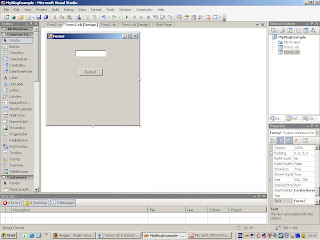
Now to open your code window while selecting the correct event for the button press action simply double-click the button on the form design. Each control (Button, text box etc) has a default event, in this case the button has a default event ButtonClick. Once you double click you should see something like this in yourcode window:

Note that I have put an underscore at the end of top line on the event handler (The bit between private sub and end sub) and cut the rest of the line down under the top line to see the whole event details. Yours will be all in one line but you can do this too so that it looks neater and you can read it in one screen.
Now declare a variable of type integer. Integer because it will be holding whole numbers like 5, 6, 7 etc Call it what you like but in this case you could use MsgAnswer or similar. Declare it within the button click event as shown:
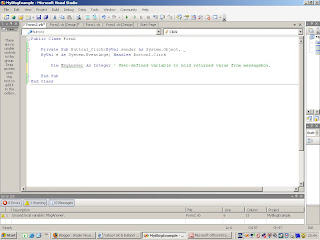
You will get a squiggly line under the variable or any variable you are not yet using, this doesn't mean an error it just means the variable is unused as of this point.
Now Add a small statement to show a message box (when button is clicked) asking the user if the value they put in the text box is correct. Code like this:
MessageBox.Show("Is the value " & txt1.Text & " Correct")
Note: your textbox (txt1) may have a different name property so be sure to change that or you will get an error message by copying this line. Default is usually Text1. So if you have not changed it's name in the properties list you would instead put:
MessageBox.Show("Is the value " & Text1.Text & " Correct")
Can you see the difference?
You can see the final code below for this part of the excercise:
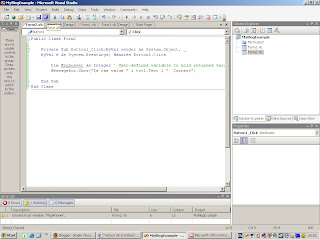
Run this code using the F5 button just to get a feel for what is happening so far. Put in a name and press the button. You will get a small message box with an OK button asking Is the value Correct ?
At this point you only have an Ok button, but you want to have a cancel and OK button. To do this got to the end of the line of code in the messagebox and put two commas, with a string value after the first one as below:
MessageBox.Show("Is the value " & Text1.Text & " Correct", "User Check Value", )
After the last comma press the space bar and you should see a list of different options pop up. Pick MessageBoxButtons.OKCancel
If the user is happy with the value they have entered then you do not want to do anything, otherwise highlight the text so they can easily fix the value. proceed to assign the messagebox value to the variable you declared. The messagebox returns an integer value depending on the option picked (Yes/Cancel).
so your code will now look like:
MsgAnswer = MessageBox.Show("Is the value " & txt1.Text & " Correct", "User Check Value", MessageBoxButtons.OKCancel)
And also add this IF statement:
If MsgAnswer = Windows.Forms.DialogResult.Cancel Then
txt1.Focus() ' Sets focus to the text box
txt1.SelectionStart = 0 ' Sets the selection to the start of the text box
txt1.SelectionLength = txt1.Text.Length ' Selects the length = to the length of the text in the box
End If
So now if you run it you will see that if you press cancel on the message box it will highlight the text in the textbox and you can enter a new value. If you say OK it will not do anything.
This was just a simple exercise to show you how the messagebox value returned from user interaction can be use to do something else depending on the answer returned. As you are probably aware the scope of this is much larger than use it has been put to in this example.
Do you see the two checks here?:
System check for correct format
User check of actual number entered
No point in doing this the other way round if you see what I mean? That is, ask user to confirm number and then validate the format of it. If the format is wrong then the user input will be wrong anyway, they might have put in a letter instead of a number for instance.
It might be an idea to start a simple VB project with a form and a text box if you don't already have one.Start up your new project as below. Call it anything you want, DialogTest or TestDialog, anything.

So you want to finally ask the user if this is the correct value they have put in before they move on. It can be a pain to be asked these things but many do not understand how useful this type of "interruption" is! It can save so many problems later on down the road.
Put a button and textbox on your form as below:
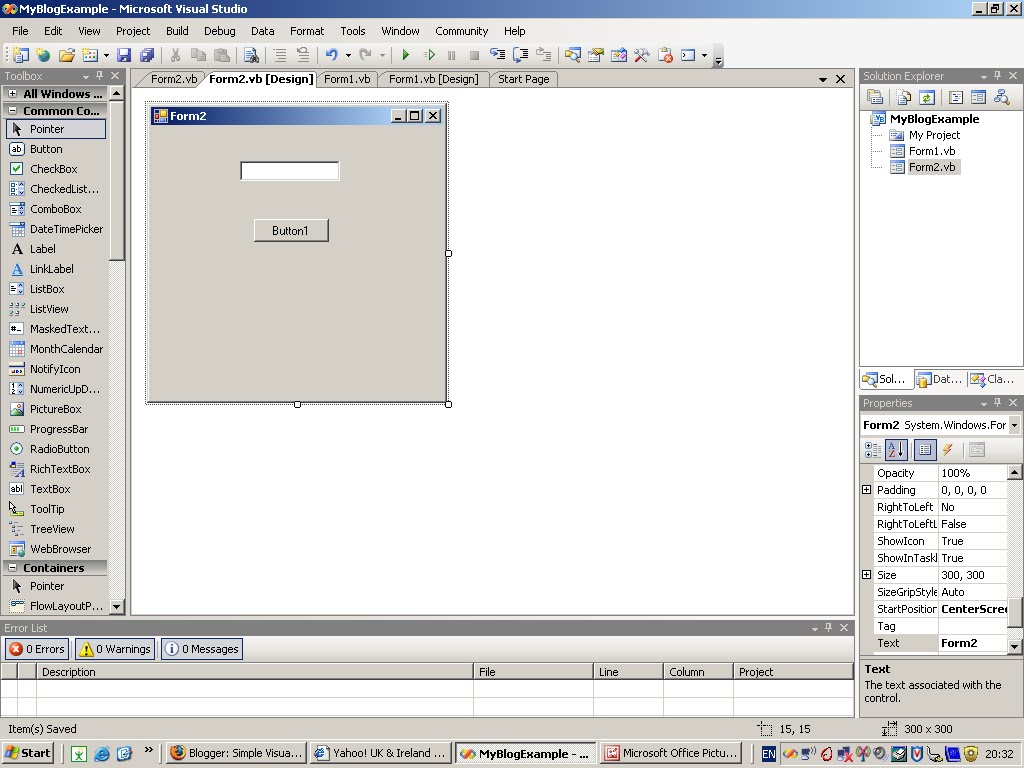
Now to open your code window while selecting the correct event for the button press action simply double-click the button on the form design. Each control (Button, text box etc) has a default event, in this case the button has a default event ButtonClick. Once you double click you should see something like this in yourcode window:

Now declare a variable of type integer. Integer because it will be holding whole numbers like 5, 6, 7 etc Call it what you like but in this case you could use MsgAnswer or similar. Declare it within the button click event as shown:

You will get a squiggly line under the variable or any variable you are not yet using, this doesn't mean an error it just means the variable is unused as of this point.
Now Add a small statement to show a message box (when button is clicked) asking the user if the value they put in the text box is correct. Code like this:
MessageBox.Show("Is the value " & txt1.Text & " Correct")
Note: your textbox (txt1) may have a different name property so be sure to change that or you will get an error message by copying this line. Default is usually Text1. So if you have not changed it's name in the properties list you would instead put:
MessageBox.Show("Is the value " & Text1.Text & " Correct")
Can you see the difference?
You can see the final code below for this part of the excercise:

Run this code using the F5 button just to get a feel for what is happening so far. Put in a name and press the button. You will get a small message box with an OK button asking Is the value
At this point you only have an Ok button, but you want to have a cancel and OK button. To do this got to the end of the line of code in the messagebox and put two commas, with a string value after the first one as below:
MessageBox.Show("Is the value " & Text1.Text & " Correct", "User Check Value", )
After the last comma press the space bar and you should see a list of different options pop up. Pick MessageBoxButtons.OKCancel
If the user is happy with the value they have entered then you do not want to do anything, otherwise highlight the text so they can easily fix the value. proceed to assign the messagebox value to the variable you declared. The messagebox returns an integer value depending on the option picked (Yes/Cancel).
so your code will now look like:
MsgAnswer = MessageBox.Show("Is the value " & txt1.Text & " Correct", "User Check Value", MessageBoxButtons.OKCancel)
And also add this IF statement:
If MsgAnswer = Windows.Forms.DialogResult.Cancel Then
txt1.Focus() ' Sets focus to the text box
txt1.SelectionStart = 0 ' Sets the selection to the start of the text box
txt1.SelectionLength = txt1.Text.Length ' Selects the length = to the length of the text in the box
End If
So now if you run it you will see that if you press cancel on the message box it will highlight the text in the textbox and you can enter a new value. If you say OK it will not do anything.
This was just a simple exercise to show you how the messagebox value returned from user interaction can be use to do something else depending on the answer returned. As you are probably aware the scope of this is much larger than use it has been put to in this example.
Thursday, 4 March 2010
Using the IIF Statement
For those that aren't aware the definition 'IIF' may seem like a spelling mistake but VB uses a statement called the IIF statement to compare an input and return either of two values. It is, in effect, a shorthand was of doing:
If
Do Something here
ELSE
Do something else
END IF
It is generally used for assigning values to variables or calling another routine rather than processing large pieces of code. The terminology is:
IIF(Input = (Value), Dothis, ElseDoThis)
And you can asign the value to something like on a form. So for example in VB create a form with a 2 text boxs and a label as below:

Text box 1 is the left box. The second text box is to give something you can tab to and fire the validate event.
On the form right click and pick view code. In the code window from the left drop down box you will see the text box name, pick this then in the right hand drop down list pick the event Validating. You will now see the following:

In this event put the following code:
lbl1.Text = IIf(txt1.Text = "Y", "Answer is Yes.", "Answer is no.")
Remember your label and textbox are usually called 'label1' etc but you can change this too what you prefer, I use lbl1 and txt1 as they are shorter to type.
So with this code you are assigning to the label whatever the IIF statement evaluates every time you tab from the first text box to the next.
If you enter 'Y' the label will get assigned a string of text "Answer is Yes.", any other value and the label will get assigned to it the value "Answer is No."
Save your design and then run it. Put 'Y' in the box and then tab to the next text box and watch what gets put in the label.
If you want to make sure that an upper case 'Y' always gets put in, even if the input is a small case 'y' then you can do use the upper case function in the code:
lbl1.Text = (IIf(UCase(txt1.Text) = "Y", "Answer is Yes.", "Answer is no."))
This just means that anything you put in the textbox will be changed to upper case. This will then handle a user putting in both upper case and lower case 'Y' and 'N'.
Some other things you can do is go to the first text box's properties and change the maxlength value from 32k to 1. This will mean you can only put in a single value. This will help us as we do not need to code as much to check that only a single character value has been put in. As below, look at the highlighted portion in the properties window, bottom right:

Now you may wonder if there is an easier way of doing this rather than having a second text box to allow validating, which then runs the code because the code is in the validate event handler. Validating only works when you are exiting a control such as a text box so to run your code without having to leave the text box you can use the textChanged event instead of the validating event. You can see the code in the new event handler below:

If you are unsure how to pick a certain event then see here for picking from the drop down lists in the code window. Example shows picking form load event but the principle is the same. You pick the control from the left drop down and then the associated event from the right drop down, have a look at the screen shots to see how in the link. You can also delete the second text box as there's no need for it now.
Now that we have our code in the new event we want to try it out so save the project and then run it. Notice how only a 'y' or a 'Y' changes the answer to "Answer is Yes"?
Tuesday, 9 February 2010
Using Functions
In this post I am going to explain the fundamentals of a function in your code, how to pass parameters in the function and return values back to the calling code.
So you might have a bit of code where in part of that code you might want to check a certain condition before you continue, and to do this you may need to go to another class etc to check this. So you may have the following in a click button event for checking a name exists:
Dim fName as string ' Declare variable
fName = firstNameInput.text ' Whatever the first name value is will be assigned to the fName variable for use in the function
Dim sName as String ' Declare variable
sName = surNameInput.text ' Whatever the last name value is will be assigned to the sName variable for use in the function
Dim Variable As String ' Declare variable
vCheckName = txtBox1.text Whatever is typed (Y/N) in the text box is then assigned to the variable
If vCheckName= "Y" Then ' When you click the button this will check if Y/N is put in the text box and call function
If Person.CallNameCheck(fName, sName) = True Then ' Call this function with the variable values passed as the parameters to use to check if the person exists etc
' Do something
Else
' Do something else
End If
End If
Notice the code above saying:
Person.CallNameCheck(fName, sName) = True
In the Person class, which is where the function is you will find something like this:
Function CallNameCheck(varFName as String, varLName as string) As Boolean
' Code to gather information and check name goes in function and uses function parameters passed
' What would generally happen here is that the data where the names reside (DB or collection)
' would be gathered and looped through. If there was a name matching the one passed through
' the parameters of the function then something like a number count would be incremented
' and an If statement would determine if that number was more than 0 then True would be returned
' The if statement would be something like as follows:
If Count = 1 then
CallNameCheck = True
Else
CallNameCheck = False
End If
This would then return true or false to the original condition i.e. This part:
If vCheckName= "Y" Then '
If Person.CallNameCheck(fName, sName) = True Then ' Check if True or False
' Do something if True is returned
Else
' Do something else if False is returned
End If
End If
If it was false then the code would go to the 'Else' statement, do whatever it has to do then exit out of the final IF statement.
This is basically what you use a function for.
Note: a function returns a certain value (True/False in this instance) to the calling statement whereas a procedure does not.
And also note that the function's parameter names can and usually do differ in the actual function itself to that, which is passed from the calling code. So in this case:
fName = varFName
sName = varLName
It is simply because the variables used in the calling code use different named variables than that to the code where the function resides. These values (varFName, varLName) would maybe be used to be passed to a database procedure which would run and check the names against the values you passed.
So you might have a bit of code where in part of that code you might want to check a certain condition before you continue, and to do this you may need to go to another class etc to check this. So you may have the following in a click button event for checking a name exists:
Dim fName as string ' Declare variable
fName = firstNameInput.text ' Whatever the first name value is will be assigned to the fName variable for use in the function
Dim sName as String ' Declare variable
sName = surNameInput.text ' Whatever the last name value is will be assigned to the sName variable for use in the function
Dim Variable As String ' Declare variable
vCheckName = txtBox1.text Whatever is typed (Y/N) in the text box is then assigned to the variable
If vCheckName= "Y" Then ' When you click the button this will check if Y/N is put in the text box and call function
If Person.CallNameCheck(fName, sName) = True Then ' Call this function with the variable values passed as the parameters to use to check if the person exists etc
' Do something
Else
' Do something else
End If
End If
Notice the code above saying:
Person.CallNameCheck(fName, sName) = True
In the Person class, which is where the function is you will find something like this:
Function CallNameCheck(varFName as String, varLName as string) As Boolean
' Code to gather information and check name goes in function and uses function parameters passed
' What would generally happen here is that the data where the names reside (DB or collection)
' would be gathered and looped through. If there was a name matching the one passed through
' the parameters of the function then something like a number count would be incremented
' and an If statement would determine if that number was more than 0 then True would be returned
' The if statement would be something like as follows:
If Count = 1 then
CallNameCheck = True
Else
CallNameCheck = False
End If
This would then return true or false to the original condition i.e. This part:
If vCheckName= "Y" Then '
If Person.CallNameCheck(fName, sName) = True Then ' Check if True or False
' Do something if True is returned
Else
' Do something else if False is returned
End If
End If
If it was false then the code would go to the 'Else' statement, do whatever it has to do then exit out of the final IF statement.
This is basically what you use a function for.
Note: a function returns a certain value (True/False in this instance) to the calling statement whereas a procedure does not.
And also note that the function's parameter names can and usually do differ in the actual function itself to that, which is passed from the calling code. So in this case:
fName = varFName
sName = varLName
It is simply because the variables used in the calling code use different named variables than that to the code where the function resides. These values (varFName, varLName) would maybe be used to be passed to a database procedure which would run and check the names against the values you passed.
Tuesday, 26 January 2010
Using Check Boxes
A check box is a simple control that allows the user to tick a box to mean they want a certain action performed. It is similar to thinking either true or false, or 1 or 0, and is actually used in this fashion in programming techniques.
When a checkbox is checked its CheckState property is set to 1 and when unchecked to 0.
If you want to have some code run when the checkbox CheckState is changed then you can use the following event:
CheckBox1_CheckStateChanged event.
In this event you can code for both a 1 and 0 event (Checked and Unchecked).
The CheckStateChanged event does not know itself what value the checkbox is at. all it knows is that it has changed. You have to read the properties of the checkbox to find that out. So if you wanted to do something depending on the state of the Checkbox (1, 0) you would maybe have an IF statement saying:
Note comments follow a single quote (')
---------------------------------------------------------
If CheckBox1.CheckState = 1 Then ' Meaning it has been ticked
'do something such as run a procedure or function etc
Else ' Can only mean the checkstate is otherwise 0
' Do some other operation
End If
---------------------------------------------------------
This code woul be in the CheckStateChanged event handler meaning that whenever the check state changes run the code inside the event handler. The full code is below:
Private Sub CheckBox1_CheckStateChanged(ByVal sender As Object, _
ByVal e As System.EventArgs) Handles CheckBox1.CheckStateChanged
If CheckBox1.CheckState = 1 Then ' Meaning it has been ticked
'do something such as run a procedure or function etc
Else ' Can only mean the checkstate is otherwise 0
' Do some other operation
End If
End Sub
Note:
Instead of using CheckBox1.CheckState = 1 you can also use:
CheckBox1.CheckState = CheckState.Checked
For 0 you can use:
CheckBox1.CheckState = CheckState.Unchecked
Which is the same as:
CheckBox1.CheckState = 0
This may seem slightly confusing and a pointless thing to have different notation meaning the same thing but it is essential to learn that these things exist in all code, and you have to learn how to spot them and understand what they mean.
When a checkbox is checked its CheckState property is set to 1 and when unchecked to 0.
If you want to have some code run when the checkbox CheckState is changed then you can use the following event:
CheckBox1_CheckStateChanged event.
In this event you can code for both a 1 and 0 event (Checked and Unchecked).
The CheckStateChanged event does not know itself what value the checkbox is at. all it knows is that it has changed. You have to read the properties of the checkbox to find that out. So if you wanted to do something depending on the state of the Checkbox (1, 0) you would maybe have an IF statement saying:
Note comments follow a single quote (')
---------------------------------------------------------
If CheckBox1.CheckState = 1 Then ' Meaning it has been ticked
'do something such as run a procedure or function etc
Else ' Can only mean the checkstate is otherwise 0
' Do some other operation
End If
---------------------------------------------------------
This code woul be in the CheckStateChanged event handler meaning that whenever the check state changes run the code inside the event handler. The full code is below:
Private Sub CheckBox1_CheckStateChanged(ByVal sender As Object, _
ByVal e As System.EventArgs) Handles CheckBox1.CheckStateChanged
If CheckBox1.CheckState = 1 Then ' Meaning it has been ticked
'do something such as run a procedure or function etc
Else ' Can only mean the checkstate is otherwise 0
' Do some other operation
End If
End Sub
Note:
Instead of using CheckBox1.CheckState = 1 you can also use:
CheckBox1.CheckState = CheckState.Checked
For 0 you can use:
CheckBox1.CheckState = CheckState.Unchecked
Which is the same as:
CheckBox1.CheckState = 0
This may seem slightly confusing and a pointless thing to have different notation meaning the same thing but it is essential to learn that these things exist in all code, and you have to learn how to spot them and understand what they mean.
Setting a Different Mouse Pointer
To use different mouse pointers such as a hand or a cross-hair when the cursor is moved over a control (Button for example) you simply set the Cursor property of the control that you want to see a different pointer on. So if you wanted to see a hand pointer on a button you would set the button's Cursor property and pick the pointer that you want to see when the mouse cursor is over that control.
Some designers like to do this as it gives a visual indication to the user that you can press the button, and when you move the cursor off the button it goes back to a simple pointer.
The default setting is a pointer on the form and on all the controls.
You can also set it programmatically by using the mouse enter event handler on a control such as a button as follows:
---------------------------------------------------------------
Private Sub btn2_MouseEnter(ByVal sender As Object, _
ByVal e As System.EventArgs) Handles btn2.MouseEnter
btn2.Cursor = Cursors.Hand
End Sub
---------------------------------------------------------------
Pick the button from the drop down list at the top left in your code window and it will automatically populate the non-bold code above into your code editor window. You then put the code in, shown in bold above.
Some designers like to do this as it gives a visual indication to the user that you can press the button, and when you move the cursor off the button it goes back to a simple pointer.
The default setting is a pointer on the form and on all the controls.
You can also set it programmatically by using the mouse enter event handler on a control such as a button as follows:
---------------------------------------------------------------
Private Sub btn2_MouseEnter(ByVal sender As Object, _
ByVal e As System.EventArgs) Handles btn2.MouseEnter
btn2.Cursor = Cursors.Hand
End Sub
---------------------------------------------------------------
Pick the button from the drop down list at the top left in your code window and it will automatically populate the non-bold code above into your code editor window. You then put the code in, shown in bold above.
Monday, 25 January 2010
Restrict Drop-Down (Combo Box) Display Number of Items
If you are using a combo-box anywhere and you are populating it with say 30 or 40 items you might - due to size and design constraints - want to restrict the amount of initial items in the drop down box. First of all your combo-box would usually be set up with it's data when the form it is on loads.
You would use the form load event. If this is not showing in your code you can simply select it using the drop down lists at the top of your code window.
Pick (Form1 Events) in the left hand drop-down box (Form1 or whatever your form is called)
Pick Load from the right-hand drop-down box
The event handler code will then appear in your code listing like this:
See here for explanation of how to create form load event
Private Sub Form1_Load(ByVal sender As Object, ByVal e As System.EventArgs) Handles Me.Load
End Sub
In this handler you can put:
ComboBox1.MaxDropDownItems = 10
And it will look like this in the event handler:
Private Sub Form1_Load(ByVal sender As Object, ByVal e As System.EventArgs) Handles Me.Load
ComboBox1.MaxDropDownItems = 10
End Sub
Meaning when the form loads the maximum amount of items the drop down will show out of your list of 30 or 40 will be 10.
Quite simple.
You would use the form load event. If this is not showing in your code you can simply select it using the drop down lists at the top of your code window.
Pick (Form1 Events) in the left hand drop-down box (Form1 or whatever your form is called)
Pick Load from the right-hand drop-down box
The event handler code will then appear in your code listing like this:
See here for explanation of how to create form load event
Private Sub Form1_Load(ByVal sender As Object, ByVal e As System.EventArgs) Handles Me.Load
End Sub
In this handler you can put:
ComboBox1.MaxDropDownItems = 10
And it will look like this in the event handler:
Private Sub Form1_Load(ByVal sender As Object, ByVal e As System.EventArgs) Handles Me.Load
ComboBox1.MaxDropDownItems = 10
End Sub
Meaning when the form loads the maximum amount of items the drop down will show out of your list of 30 or 40 will be 10.
Quite simple.
Subscribe to:
Posts (Atom)

